Prolost Watches
Prolost Watches is a modern, private databasejournalsystem for your watch collection that lives on your iPhone.

“Little hand says it’s time to rock and roll!”
My name is Stu. I did not set out to become a watch collector, but the hobby has captivated my attention and held it for years. I made Prolost Watches not to quantify my fascination, but to elevate my enjoyment of it. Here’s how I use it:
- Every watch I own is entered into the app. Every detail I want to remember, in one place.
- Every day I wear a watch, I log it. Over time, this reveals insights. In the moment, it adds to the ritual and intentionality of choosing a watch for the day.
- Throughout the day, I check the app. It surfaces memories of watches and my adventures with them. It helps me enjoy the watches I’m not wearing today — even ones I’ve let go.
- If I snap a wrist shot, I add it to Prolost Watches. These moments appear on the Map and in the Events timeline, and bubble up later for ongoing enjoyment.
- Every turn of the calendar page, I enjoy the Manifest, a report of my activities and wear habits for the previous month.
- When I sell a watch, I log that too. My watch finances keep track of themselves.
Privacy & Floppy Disks
_
I learned to code on the green phosphors of an Apple II, and Prolost Watches is a true Gen X app: It’s a program that runs on your computer. Your computer being your phone. The point is, your data is stored locally and remains private, unless you actively choose to share it.
Also of note:
- No subscription
- No ads
- No data collection
- No monetization strategy where you become the product.
Adding Watches
“A man with a watch knows what time it is. A man with two watches is never sure.”
The more information you add about your watch collection, the more enjoyment and insight Prolost Watches brings. You can get as detailed as you want, down to reference numbers and lug widths, but the key data points for each watch are:
- Brand
- Model
- Date Acquired
- Price Paid
With just this information, the app can start showing you some fun and revealing analyses. But Prolost Watches can track every imaginable detail of a watch, from case material to depth rating to power reserve. Entering all these specs could get tedious — if Prolost Watches didn’t do it for you.
- As you add/edit a watch, Prolost Watches checks against an ever-growing database of watch specifications. If a good match is found, complete specs are only a tap away.
- If your watch isn’t in the database yet, a web search is only a single tap away.
- Prolost Watches can also look up the technical specifications of your watch for you, and use private, on-device AI to match the results to the right fields. This requires Apple Intelligence to be enabled on your device.
All Your Database are Belong to You
Prolost Watches comes with a large database of watch specs that works completely on-device. When your device is online, it may occasionally download updates to this database.
Given the privacy focus of the app, it’s worth understanding that while the database is updated from an online source, when you access it, that’s entirely private and local to your iPhone. I never know what you’re looking up or what watches you’re adding.
There are two ways you can breach this privacy wall, both intentional, and both opportunities to be generous to the Prolost Watches community:
- Report an Issue with suggested specs. Nobody knows your watch better than you. When looking over the specs that Prolost Watches suggest, if you see something amiss, choose Report an Issue and optionally leave a note explaining what’s wrong. This triggers an investigation and a database update.
- Contribute Specifications. If you have a well-specced watch entry that Prolost Watches doesn’t have in the database, you may see a suggestion to contribute the specs. If you choose to do this, it triggers an investigation into the watch and any related watches within the brand.
In both of these cases, your submissions are anonymous, and the only data that is sent are the watch specifications.
Migrating From Other Systems
If you had a system of tracking your watches before Prolost Watches — and I bet you did — you can import the data and get a jump start.
Customizable Taxonomy
When adding or editing a watch, you can specify its Type. Examples include Dive, Dress, GMT. Add as many as you like to any watch. Create your own Type if yours is missing.
The same goes for Case Materials and Finishes, as well as Movement Type, Dial, Bezel, and Crystal — choose from the options in the lists, and/or add your own.
Features is the catch-all. Date is a feature, but real ones know that No Date is too. Chronograph is a Type, Flyback and Sub Seconds are Features.
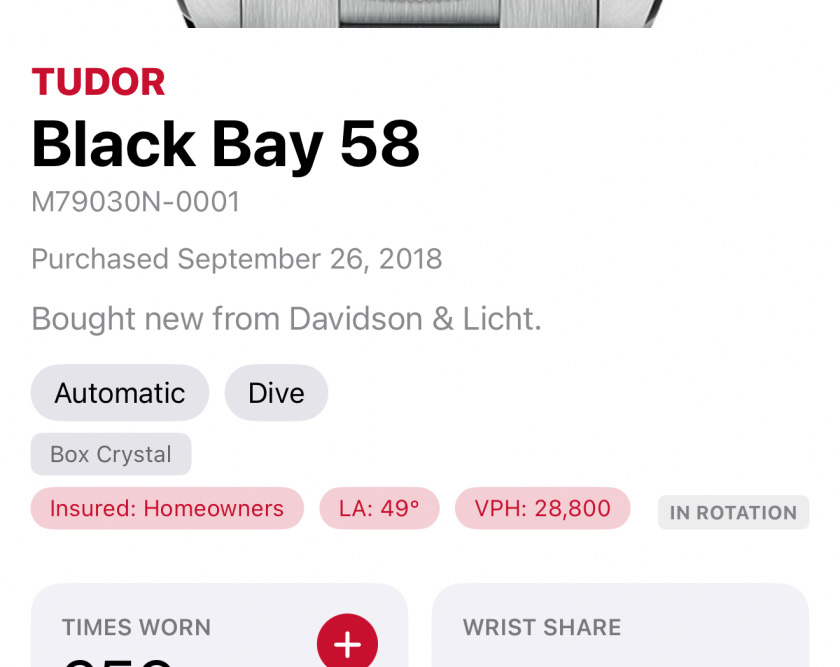
Tags may be the most powerful metadata type of all though. What do you and only you want to track about a watch? I’ve got tags for Keepers vs. Could Sell vs. Should Sell. One collector uses Tags to note the correct winder settings for each watch. Another uses them to note which insurance policy covers the watch. I’ve got a tag for “Maybe I’d love this watch more on a different strap.”
You can filter by any of these fields in All Watches.
Watch Images
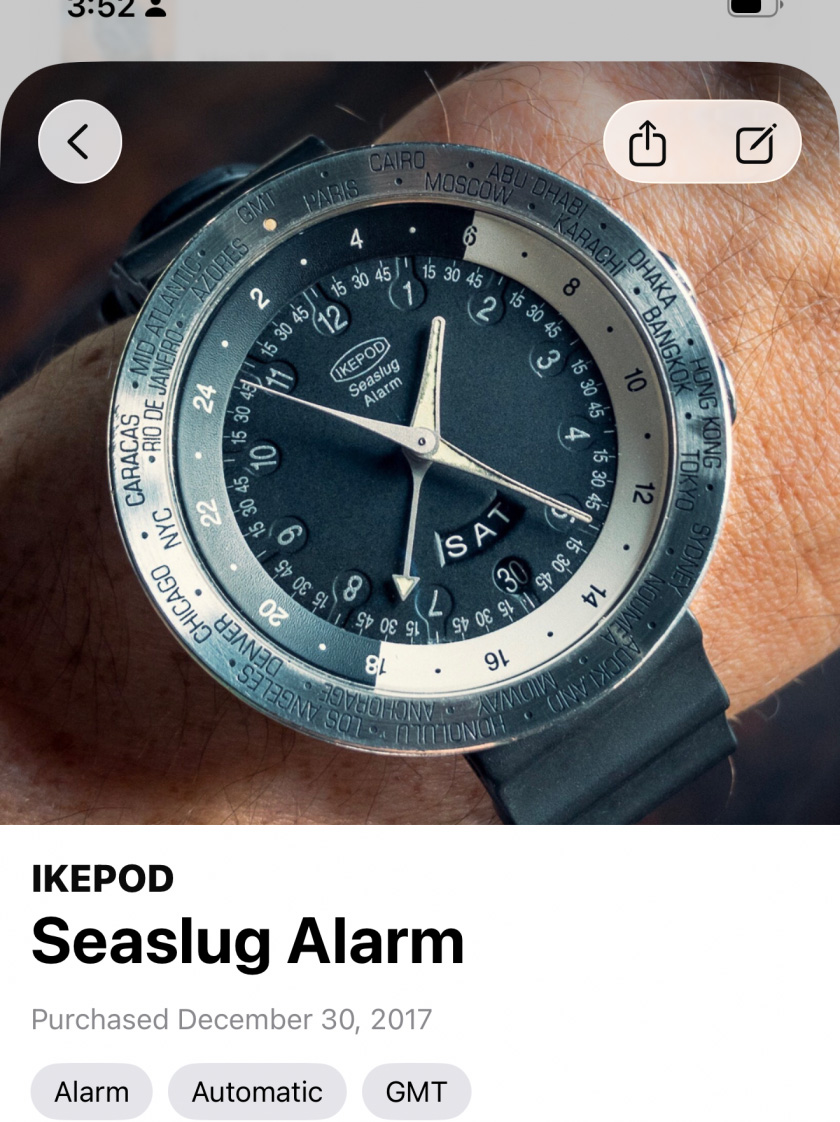
Every watch can and should have a photo or other image. I love using my own photography for this, but Prolost Watches also makes it easy to search the web for images of your watch and add them with a tap.
Watch Details

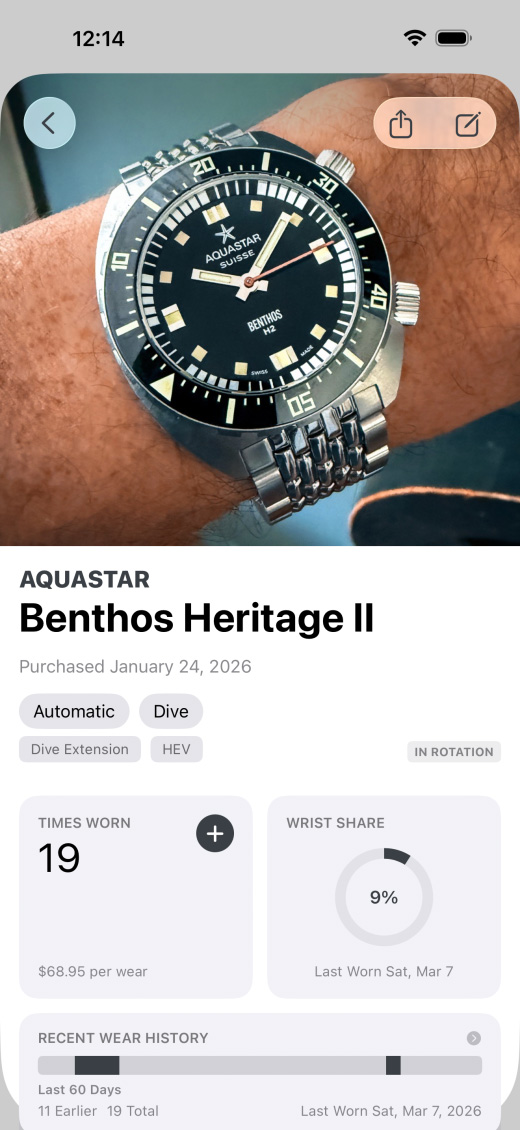
Once a watch is entered, it gets its own beautiful page summarizing not just its features and specifications, but also how it fits into your life. You’ll see Events here, and a graph of Expenses incurred servicing or supplementing the watch.
You’ll see how many times the watch has been worn, and a revealing stat called Wrist Share. You’ll also see Cost per Wear, a fascinating statistic that levels the playing field between Timex and Rolex.
You can take meaningful action right from Watch Details; update Status, log a wear, add a Timekeeping record, or add Events and Expenses.
Insights
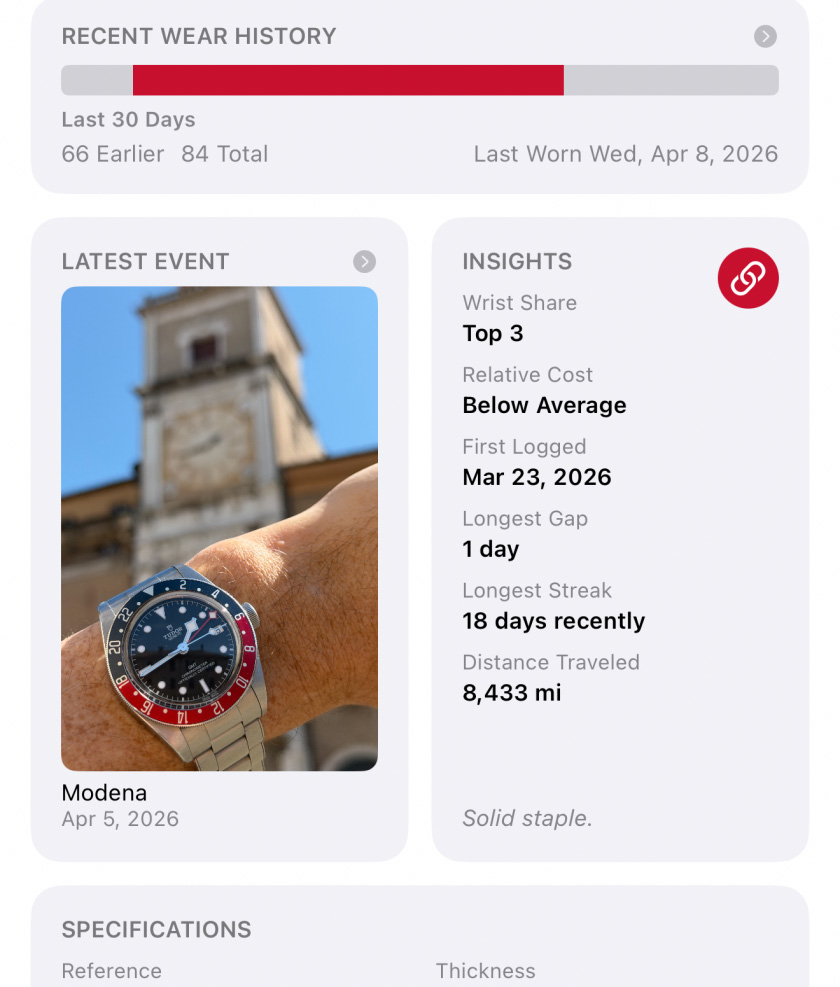
Within Watch Details you’ll find a small area called Insights. Here you’ll find delightful tidbits of information put together from your activity with the watch. Relative Cost, date of first wear logged, Longest Streak on-wrist, and my favorite: Distance Traveled.
Logging Your Daily Wear
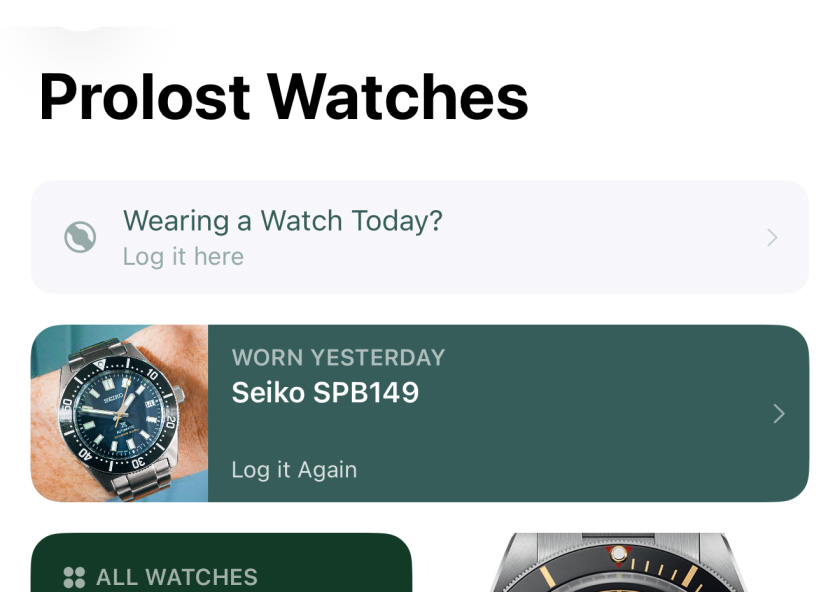
Prolost Watches comes to life when you start logging your daily choice of watch. Over time, these logs reveal the truth about which timepieces have held their value by the metric that matters most: your attention.
You can log a “wear” from individual Watch Details, or from the Recently Worn complication. Log any date from the Wear Calendar.
Of course you can log multiple watches per day.
If you grant Prolost Watches location access, wear logs can include GPS information, creating an automatic record of your travels and adventures with your watch.
The Historical Documents
If you have a sense, or even some hard data, about how many times you’ve worn a watch before using Prolost Watches, enter that number in Edit Watch → Earlier Wear Count.
Daily Reminders
If you like, Prolost Watches can remind you to log your daily wear. In Settings → Notifications, turn on Daily Reminders and choose a time.
The “Complicated” Interface
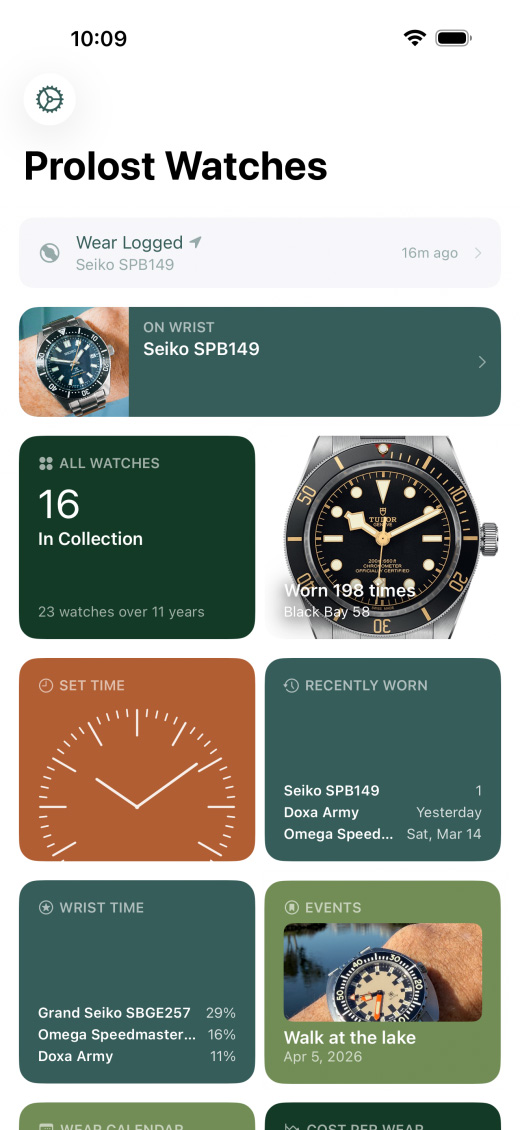
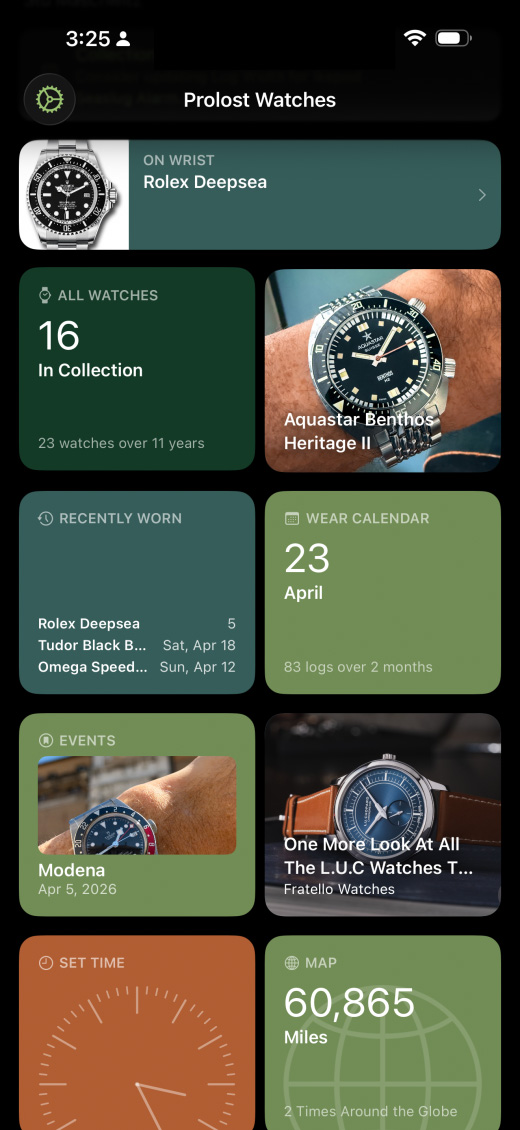
The main screen of Prolost Watches is a grid of “Complications,” each of which offers its own window into your collection. You can re-order these, and turn them on and off to taste, in Settings → Customize Layout.
Nothing is lost when you toggle off a complication, you can always turn it back on later.
It’s not Easy Being (Only) Green
Prolost Watches offers several choices of color palettes to customize the appearance of the app. Find them in Settings → Color Palette.
Activity & On Wrist
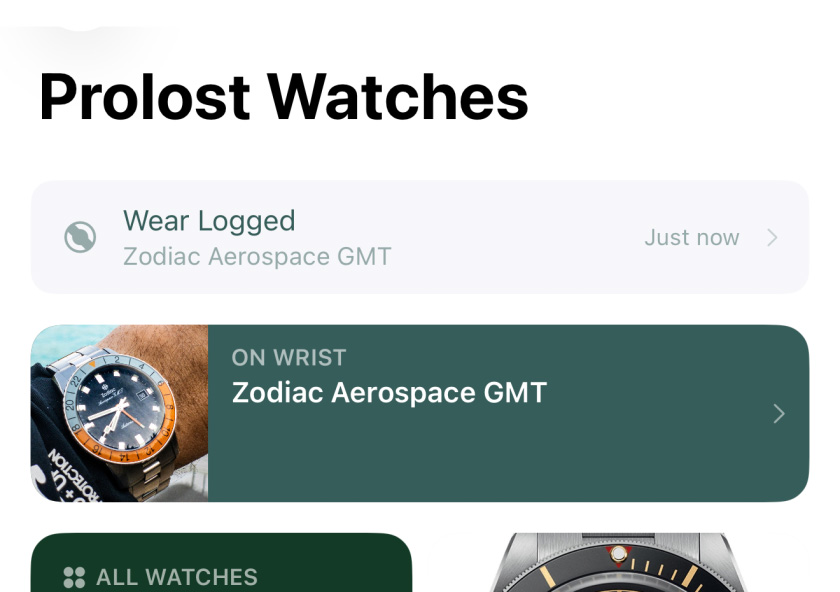
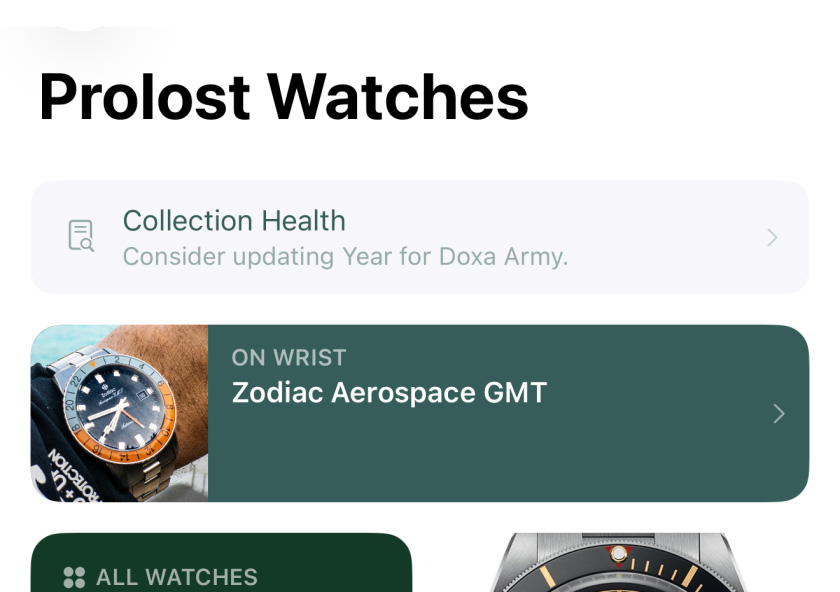
At the top of the main screen you’ll always find the Activity complication. You’ll see your most recent action here. Tap for a history. After some minutes, Activity might shift to a recommended action. Collection Health alerts suggest data points that might be worth adding to watches, or when the database might be able to help augment your watch specs — or vise versa.
You’ll also see reminder here to back up your data.
Below Activity is On Wrist, which reminds you every morning to log what you’re wearing, and reminds you throughout the day what a good choice you made. On Wrist offers interesting data points too, like the distance or time since that watch was last logged, or your current streak.
All Watches
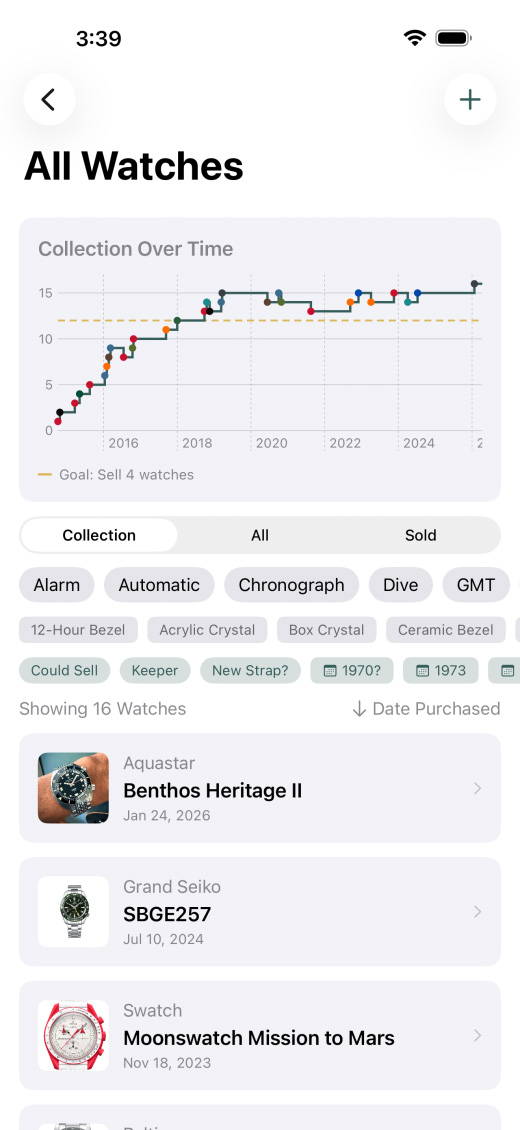
The hub of Prolost Watches is the All Watches complication. Here you’ll find a graph of your collection count over time, and a sorted, filterable list of all your watches.
At its core, this is your directory for your collection. But it’s the sorting and filtering options that bring this view to life. Sort by Date Acquired, Last Worn, or even Wrist Share. Filter by dozens of criteria, including your own custom Tags.
- Show only Dive watches and sort by Depth Rating.
- Sort your Manual Wind watches by Thickness and revel in their sveltetitude.
- Filter by your Could Sell tag and sort by Value to see opportunities to make room for the future ex Mrs. Left Wrist.
Setting Goals
Every collector has a sense of the “right” size for their collection. Some even follow a strict one-in, one-out policy. The rest of us can dream.
In Settings → All Watches, you can optionally enter your “ideal” collection size under Goal Line. This adds a subtle dashed guide line to the All Watches graph, helping you visualize the perfect collection size. And maybe even work toward it.
So Fresh and So Clean
In the menu of sort options, you’ll see an option for Freshness. Freshness is a score assigned to a watch based on its Wrist Share and how long ago it was last worn. Both the watch’s popularity and the number of days since wearing it will increase this ranking, so you wind up with a sorted list of your favorites that haven’t been worn in a while.
This view is helpful for picking something fresh, because as soon as you log a wear, that watch drops to the bottom of the list.
Selling a Watch
“And now, little man, I give the watch to you.”
When you sell (or give away) a watch, edit the watch and add a date and optional price. This changes the look and function of the Watch Details view for that watch, and is reflected in your Finances charts.
You can also optionally note to whom the watch was released, and even include a URL if you like.
Showcase
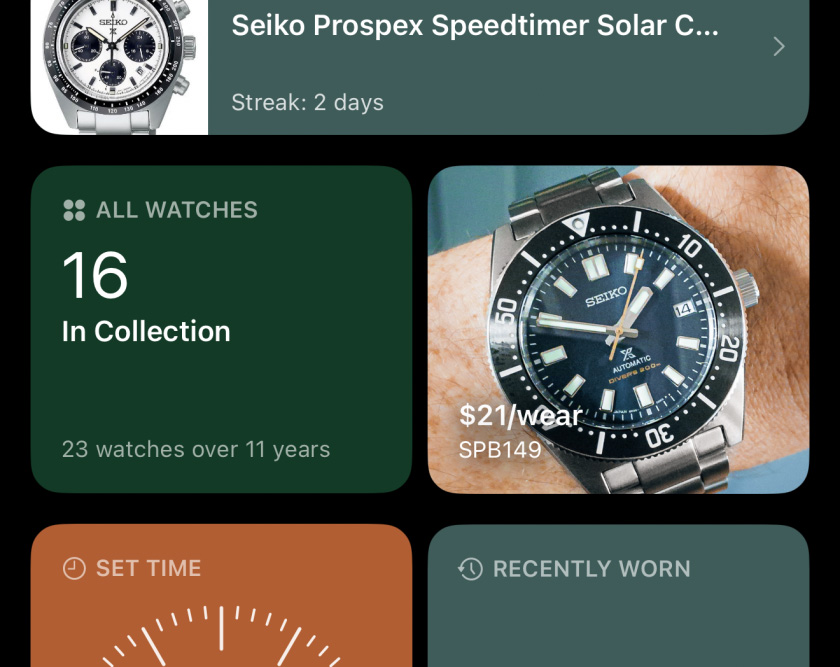
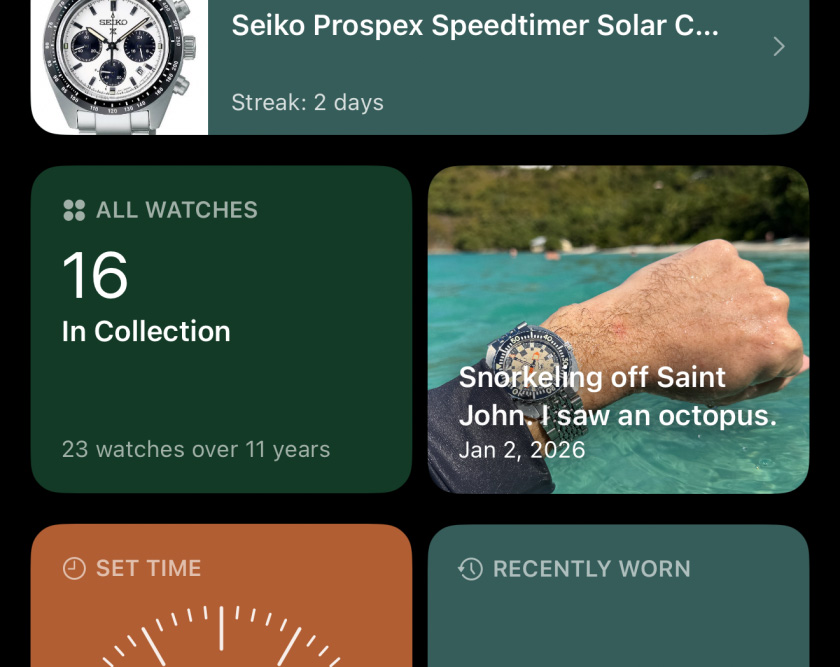
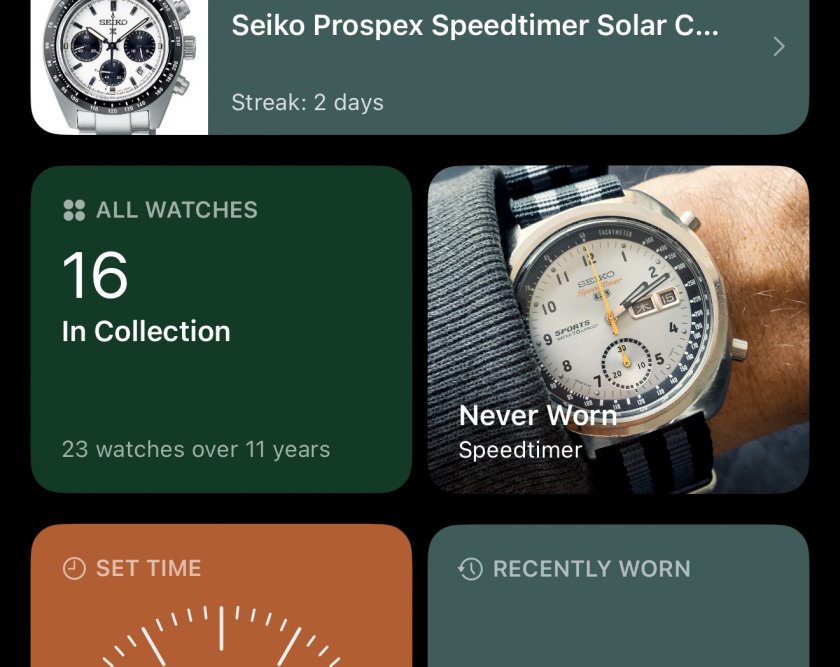
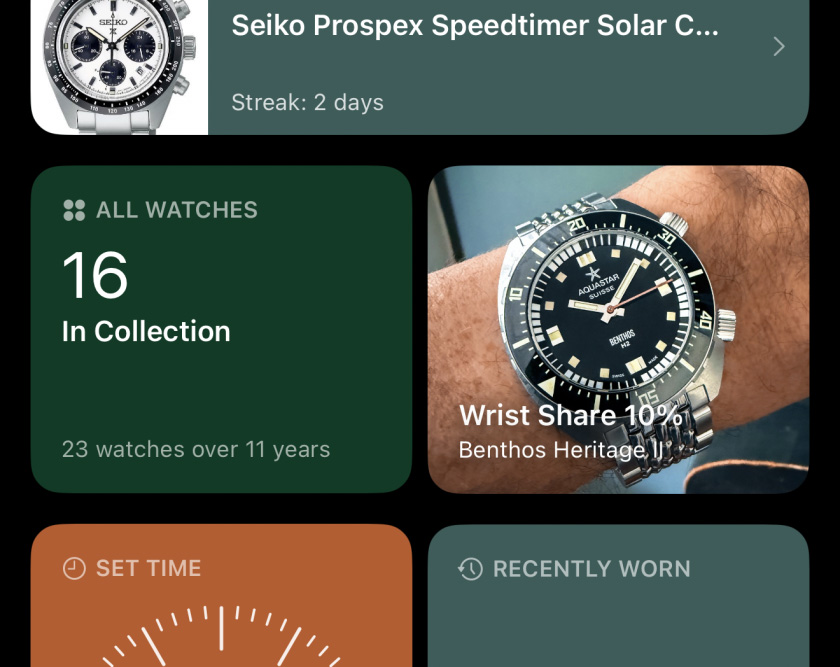
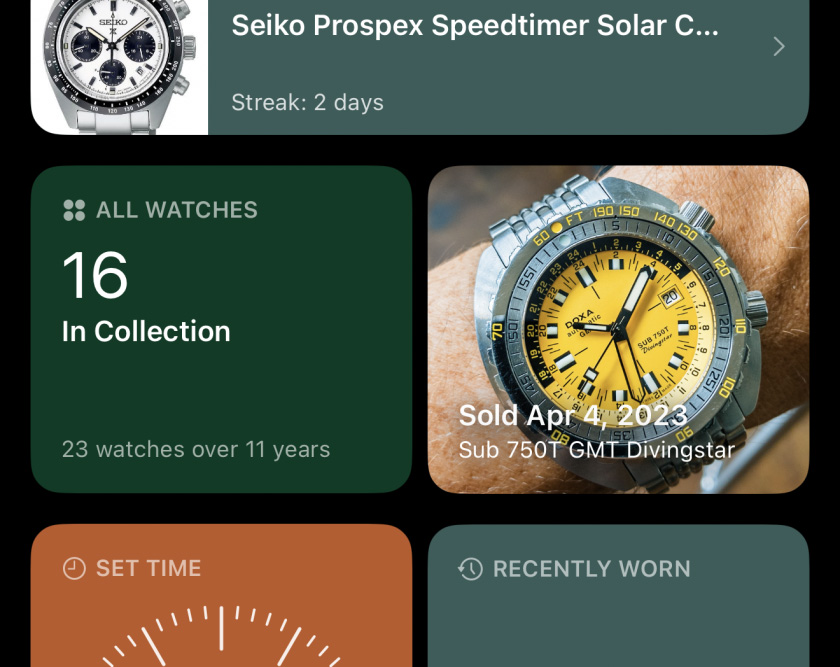
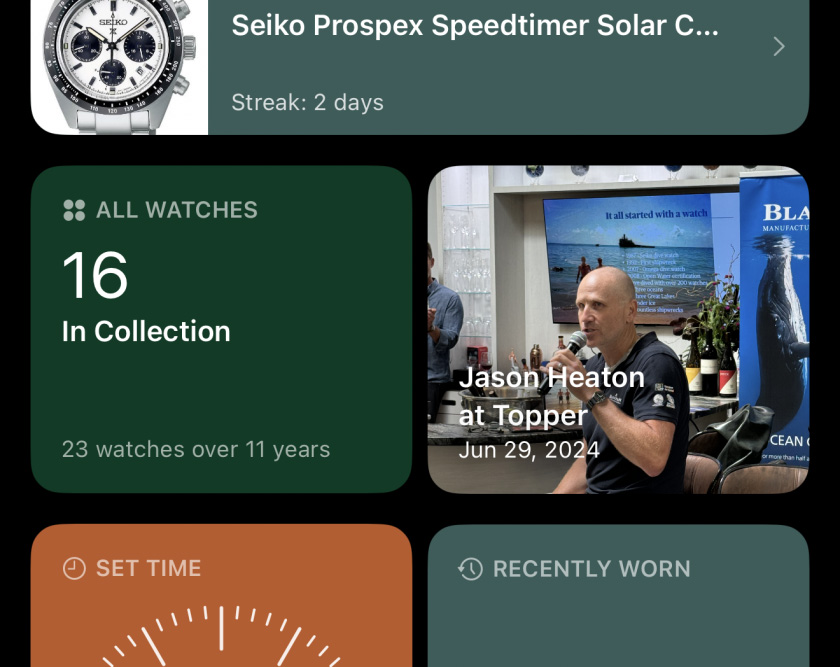
The Showcase complication is a rotating gallery of your watches and adventures. It’s my favorite part of the app, because it allows me to enjoy the watches in my collection that I’m not wearing.
In Settings → Showcase, you can customize how often the slideshow advances, and which categories are included. Showcase highlights little-worn watches as well as favorites, purchases and sales, recently-updated watches, on-this-day events, and much more — all configurable to your taste.
Set Time
Setting the time on a watch is a lovely ritual where we’re as in touch with the details of the watch’s movement and design as we’re ever likely to be. Prolost Watches features a simple and accurate clock display to help you set your watch to perfection.
Make it Your Own
In Settings → Complications → Set Time, you can choose how you’d like the date displayed, and what kind of clock to show in the complication — analog or digital. Settings → Regional is where you choose between 24-hour time display and 12-hour.
There are a couple of hidden features on the Set Time screen, see if you can find them!
In the Mean Time
Tap the ring of 24 dots to enable a 24-hour hand, set to UTC time. You can adjust the offset of this hand and the second time zone display. As you travel across time zones, local time updates with your device, but the 24-hour hand maintains its offset to UTC time. All without requiring network access.
Recently Worn
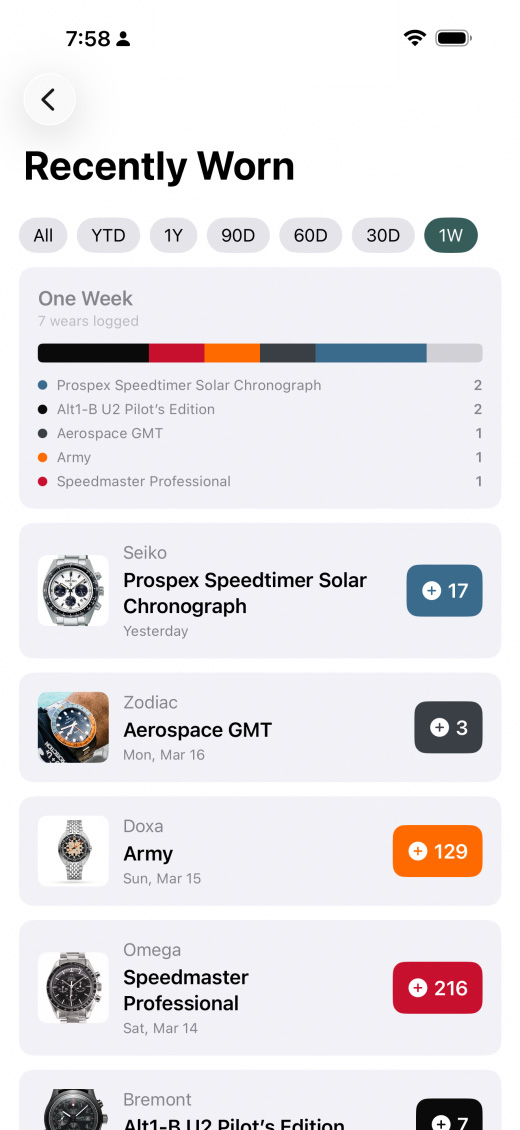
The Recently Worn complication tracks your recent wrist history with a mini-timeline, and offers easy re-logging of recently-worn watches. Pick your time window and get a scorecard of who has dominated the wrist.
This may be your most-used Complication.
Wrist Time
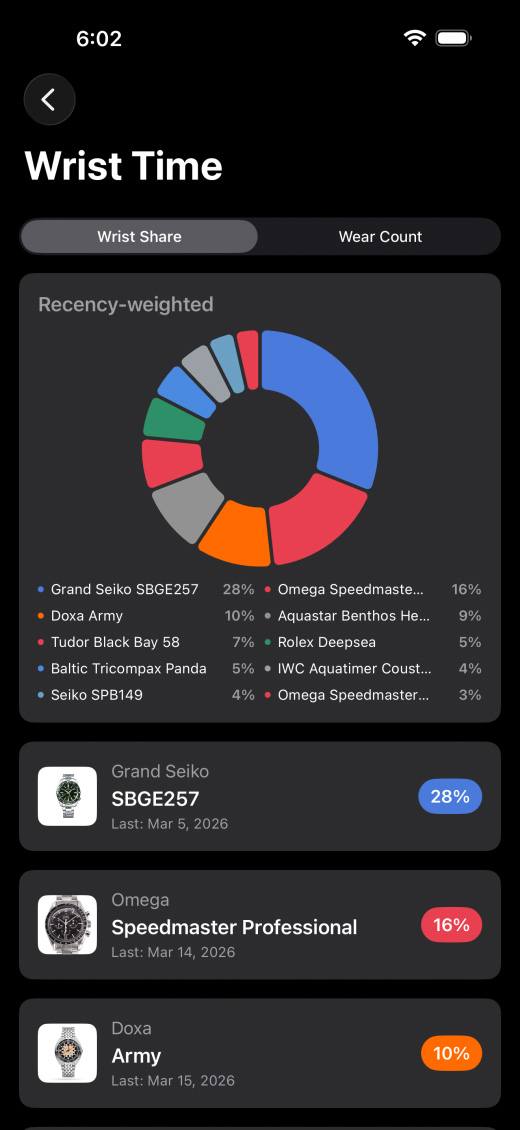
We talk about it all the time — the watches that captivate our attention earn Wrist Time. Since you’re logging your daily wears, it’s easy to see which pieces have had the most time in the sun, and Prolost Watches presents this in a beautiful chart.
But pure wear count doesn’t tell the whole story. As time marches on, a watch you wore hundreds of times in the past might spend months in the drawer, while others rotate actively, with lower counts.
So Prolost Watches has the unique concept of Wrist Share. Each logged wear earns a score, and these scores diminish over time. Recency matters to Wrist Share — it’s a measure of what you’re actively wearing, expressed as a shared percentage.
Math Life
Wrist Share scores diminish the same way caffeine does in your bloodstream and radiation does in Godzilla’s footprints: via half-life.
The default Half-life for Wrist Share is 120 days. That means if a wear today is worth 10 points, in 120 days it’s worth 5, and in another 120 days it’s worth 2.5.
Tap the Info button in the Wrist Share chart to interactively adjust this value. Higher numbers give greater weight to older logs. Try 300 if you want a seasonal favorite to remain in the rankings. Try 30 as an incentive to keep things fresh.
Events
“Something to remember our adventure by.”
The Events complication is a lightweight photo-journal of moments with your watches. The best way to start logging an Event is with a photo taken with your phone, because the date and even GPS location will be used automatically.
Aquisitions and sales with dates also show up in Events.
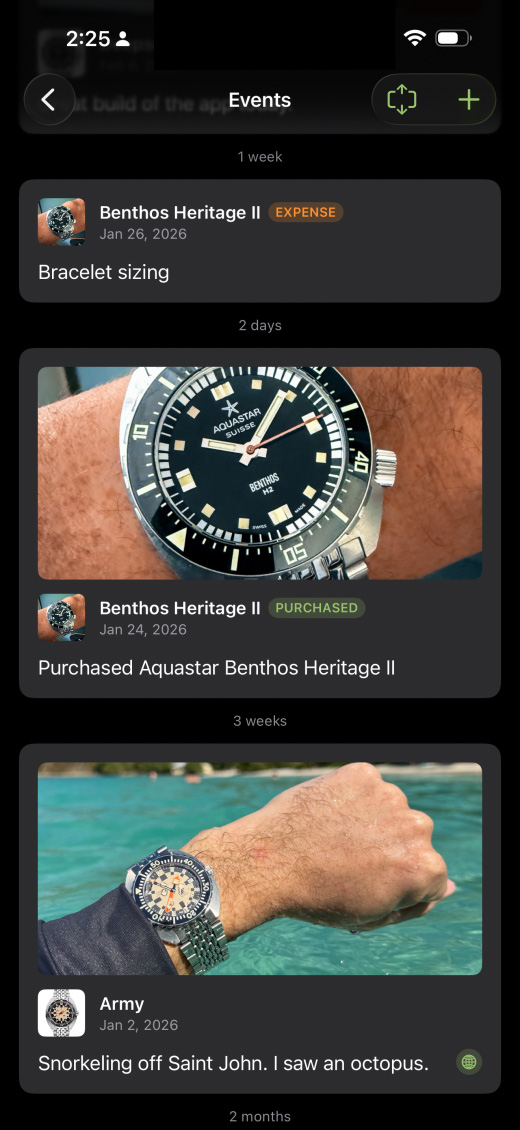
Each watch has its own Events stream in Watch Details, and the Events complication combines them all into one timeline of your watch journey.
If it’s Not Scottish, it’s Crop
Prolost Watches sometimes crops your photos for display. When you add a photo to an Event, you’ll see a small dot. Place it on the watch, or other subject of the photo. This Focal Point guides any cropping to keep the subject of your photo framed.
Wear Calendar
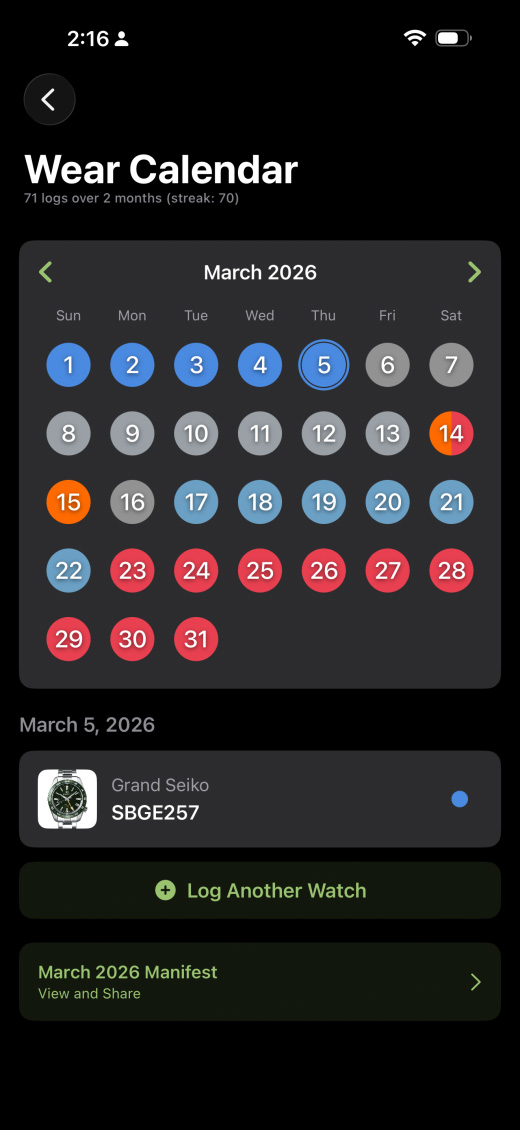
Secretly the coolest complication in the app. Yes, the Wear Calendar is another view on what’s recently on-wrist, but magic happens here at the end of every month, and year.
At the end of a month of logging daily wears, you’ll be offered the monthly Manifest — a custom report of the month’s wrist activity, including a celebration of the watch that dominated your days.
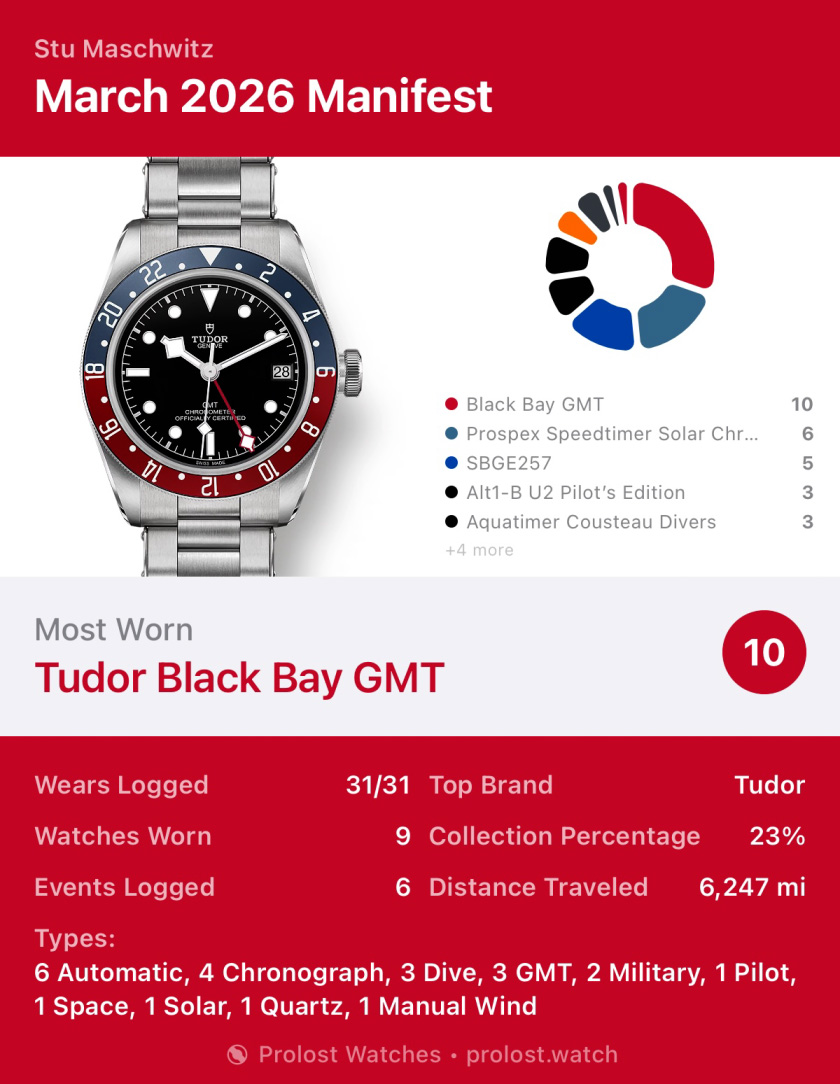
The Manifest can be saved, and shared — if you’re into that kind of thing.
Cost Per Wear
“Thirty more years of this and you get a tiny pension and a cheap gold watch.”
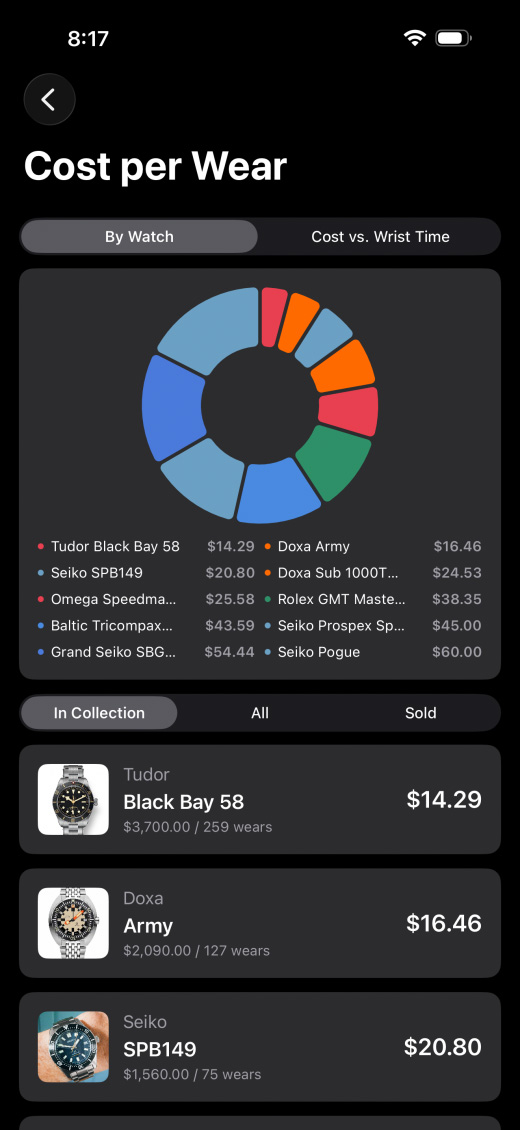
Some find this silly, I find it fascinating. I have a Seiko and a Rolex duking it out for top honors in this simple dollars-per-day metric.
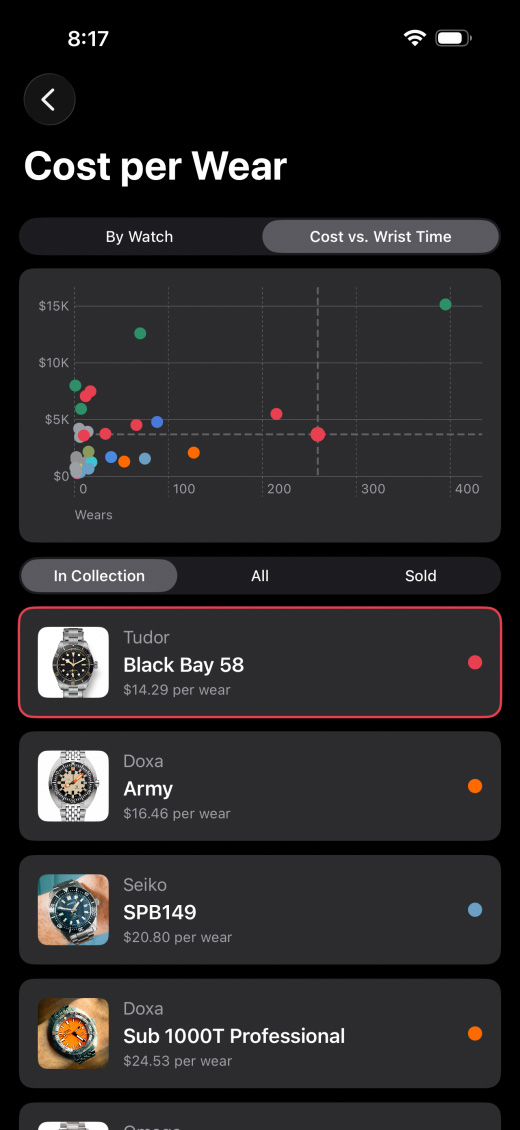
The Cost vs. Wrist Time scatter chart lives here too. This is a fascinating map of the “neighborhoods” of your watches, from upper-left safe queens to the diamonds in the lower-right rough.
Brands
“It’s just a small token of appreciation for all her hard work.”
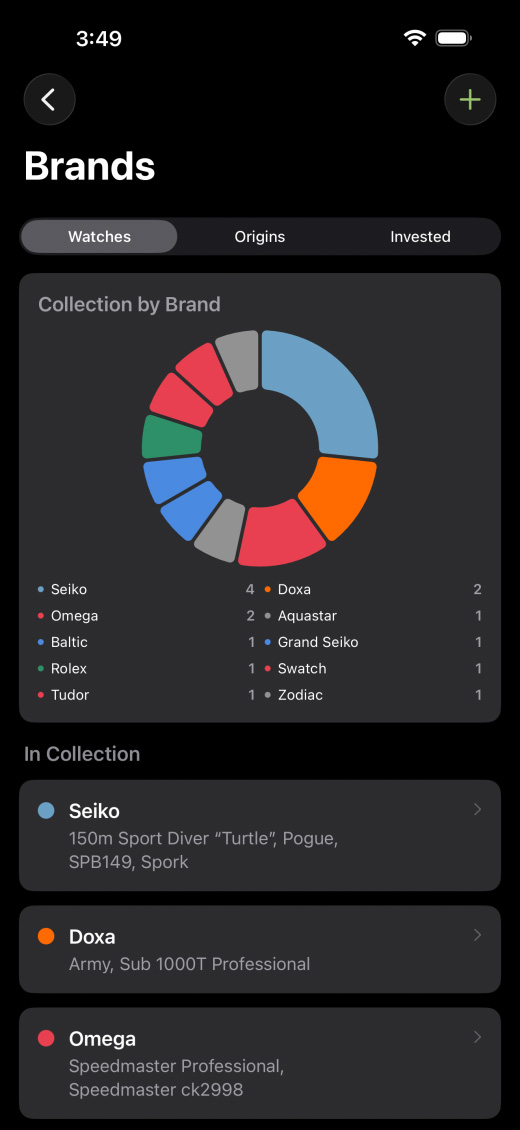
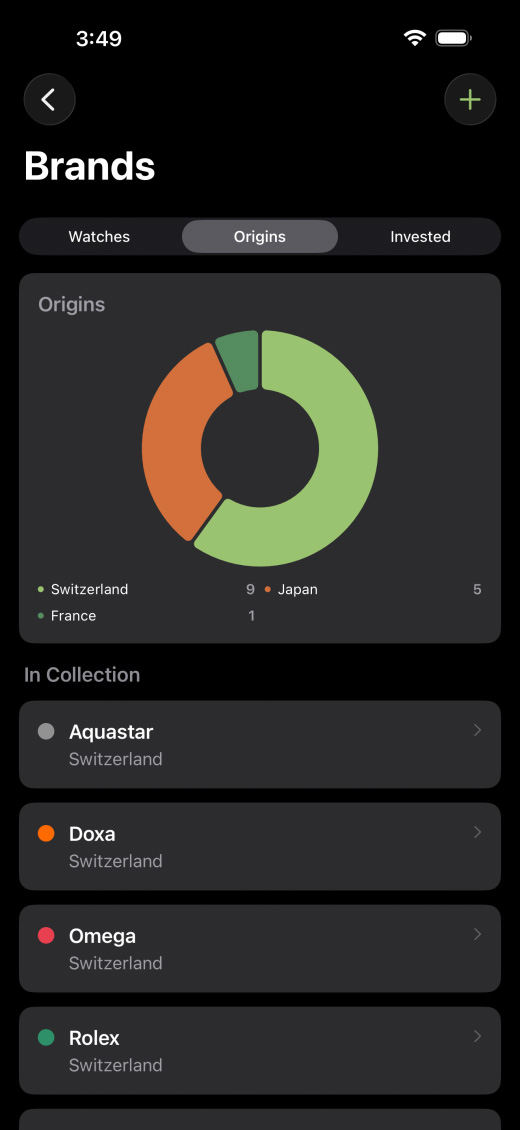
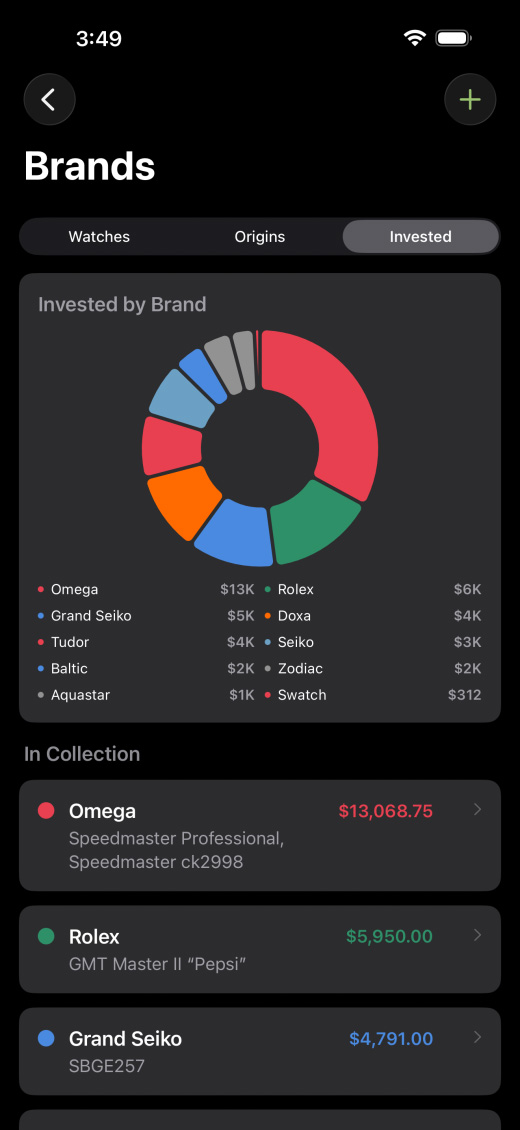
Another oddly level playing field for collections of a certain size. Which manufacture dominates your dollar? Is the the dozen Doxas, or the lone Glashütte grail?
This is also where you add, remove and edit brands. The app comes with quite a few, but it’s easy to add more. Don’t worry if you make a mess, you can always reset to the default list.
Timekeeping for Lumberjacks
“I’d better remind myself again. Ted! Don’t forget to wind your watch!”
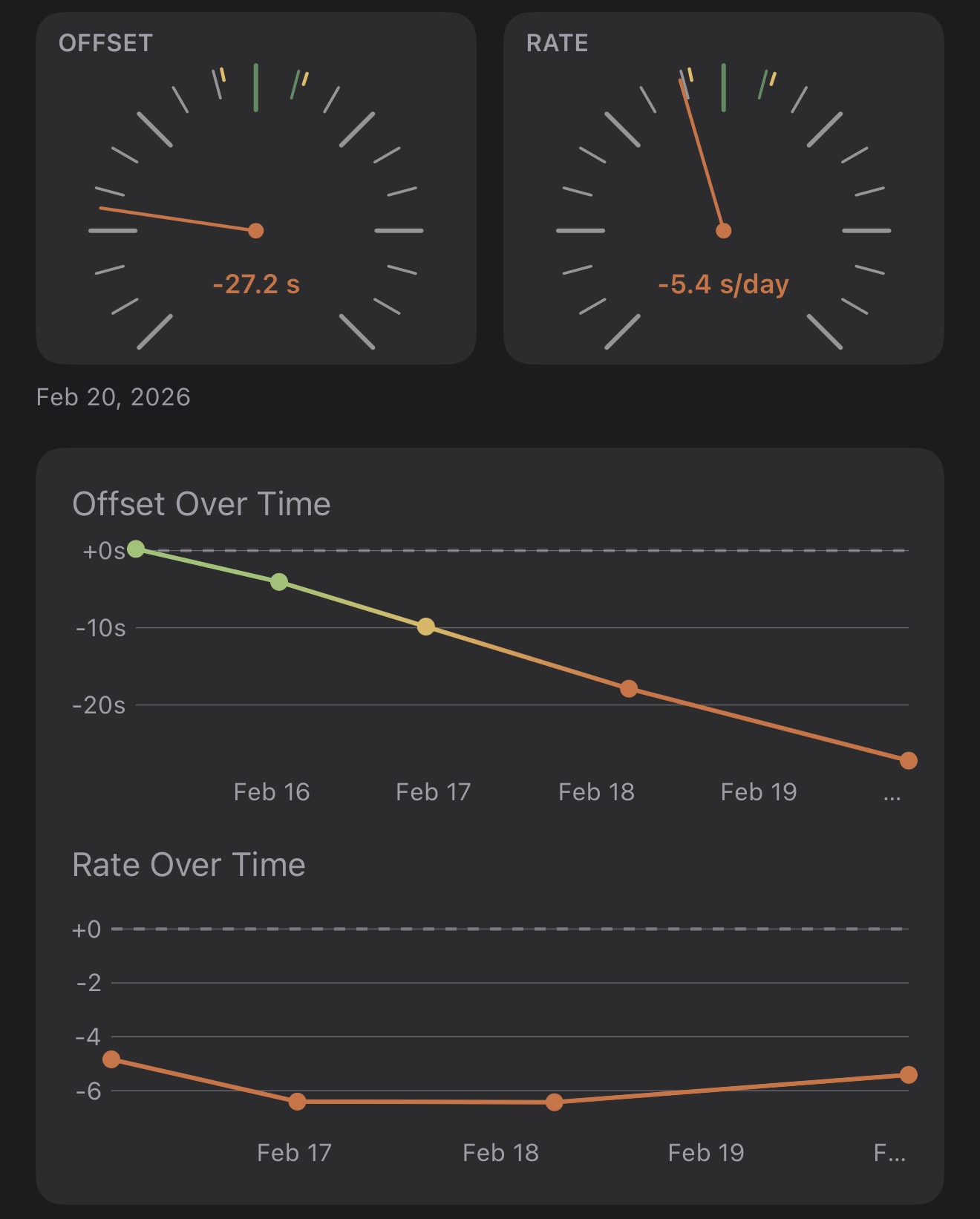
There are apps out there that duplicate the functionality of a timegrapher, listening to your watch movement and recording its accuracy. Prolost Watches works more like we do — on day five of wearing a watch, maybe you start to think it’s running slow? Check it the old fashioned way: by tapping a button. Makes me feel like I’m pausing out commercials on my parents’ VCR.
Bonus: Our folksy method works on Spring Drive and Quartz too.
Timekeeping Tips
A watch can be accurate (or not) in multiple ways. The two that Prolost Watches tracks are:
- Offset — how close is your watch right now to the correct time? Measured in seconds.
- Rate — how much does your watch gain or lose over time? Expressed in seconds-per-day.
Prolost Watches computes Rate from the two most recent Offset measurements. This sounds complex, but it’s actually how most of us think of timekeeping — how far did it drift over how many days?
Because this whole operation is only as accurate as your Asteroids-trained button-tapping skills, Offset measurements must be at least six hours apart for a Rate to be derived.
Timekeeping records are color-coded, and you probably spotted the pattern:
Finances
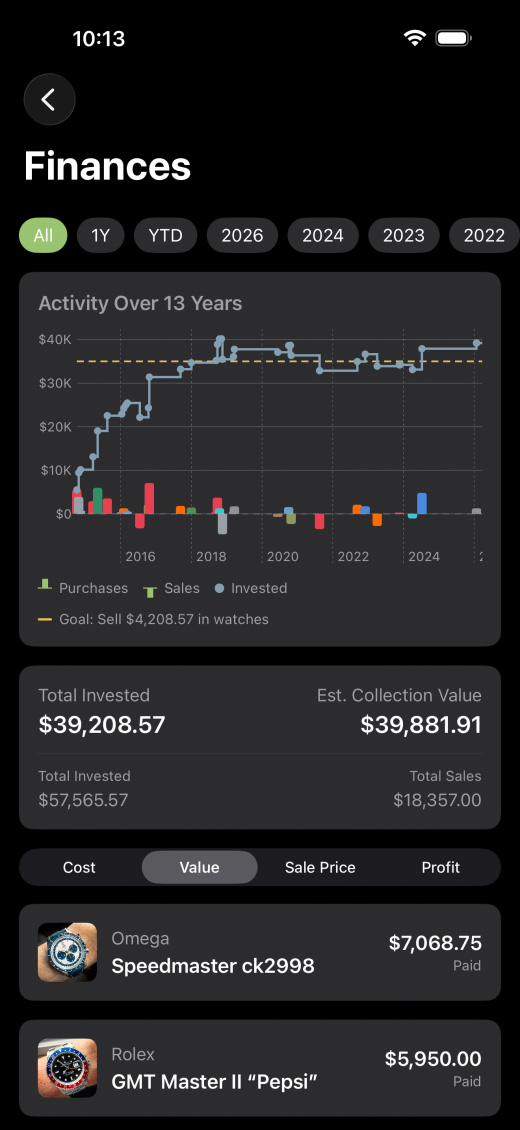
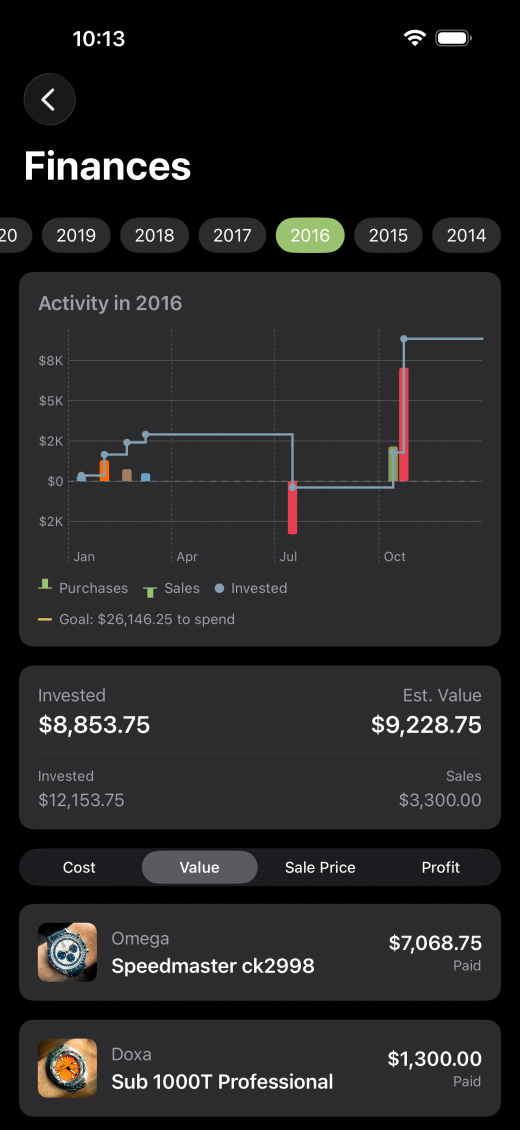
Yes, Finances does show a graph of your watch investment over time. And for that I do apologize.
Filter by this year, year-to-date, or any previous year. Sort by cost, current value, sale price, or profit.
This complication is either the buzzing hub of your thriving buy/sell/trade activity, or a harsh wake-up call. You can always hide it if the latter is scarily true.
As with All Watches, Finances has an optional setting for a goal line, if you’d like to work toward a specific level of investment. The chart will subtly tell you how much you need to sell — or what you’re cleared to spend.
Map
“It tells time simultaneously in Monte Carlo, Beverly Hills, London, Paris, Rome, and Gstaad.”
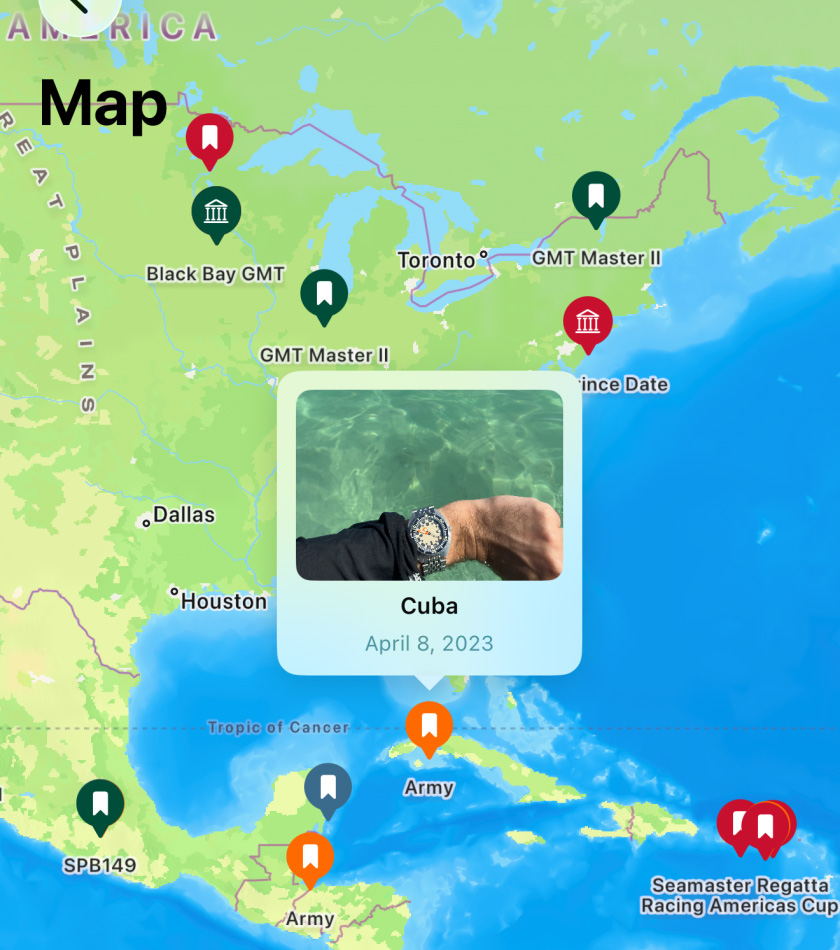
Events, Wear Logs, and purchases with locations appear on the Map. Tap the pins for a mini preview. I get way too much enjoyment from this simple feature, reliving wonderful memories of travel, adventures, and most certainly watches.
News
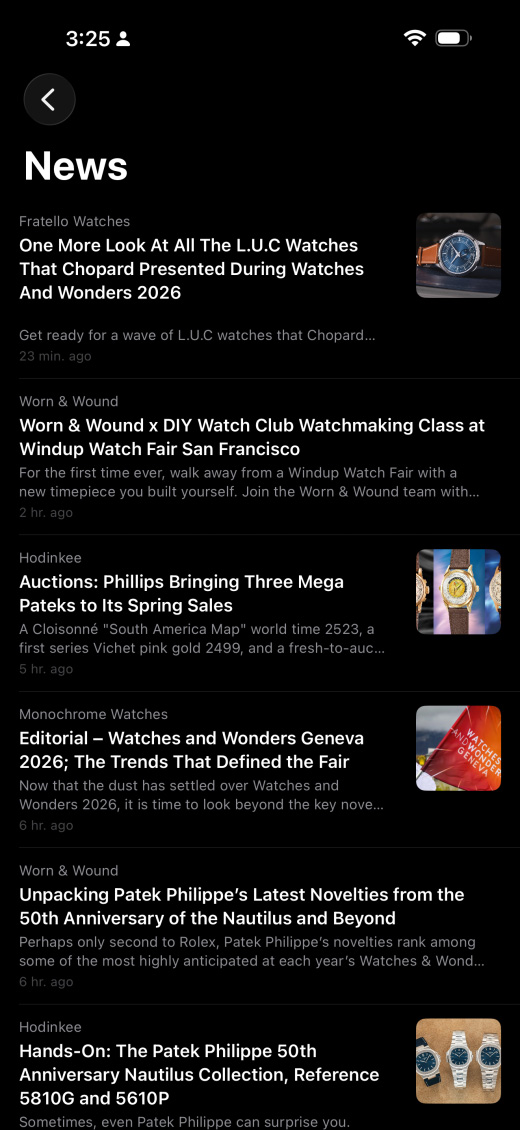
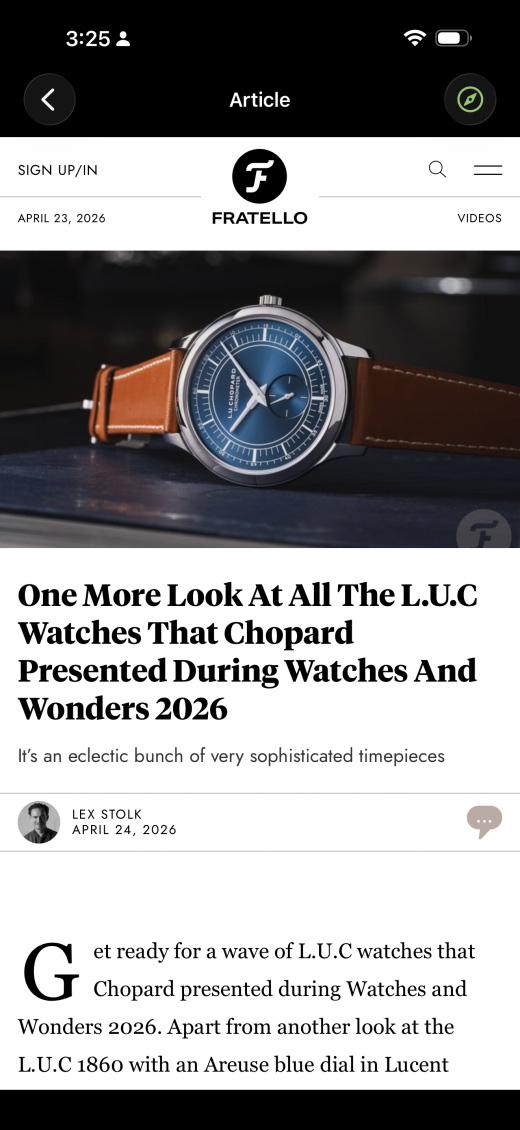
Watch news from popular sites, right in the app. Add your own RSS feeds and customize the list.
It’s a Carousel
Some days you know exactly which watch to wear. And some days… maybe let fate decide.
The Carousel is a deceptively simple random roll of the dice, that you gently guide by picking a mood (Neglected? Favorite?), and maybe a broad type of watch (GMT? Chronograph?). Then Spin, and see where it lands.
There’s a giddy delight in promising yourself you’ll abide by the result.
A Watch Has Status
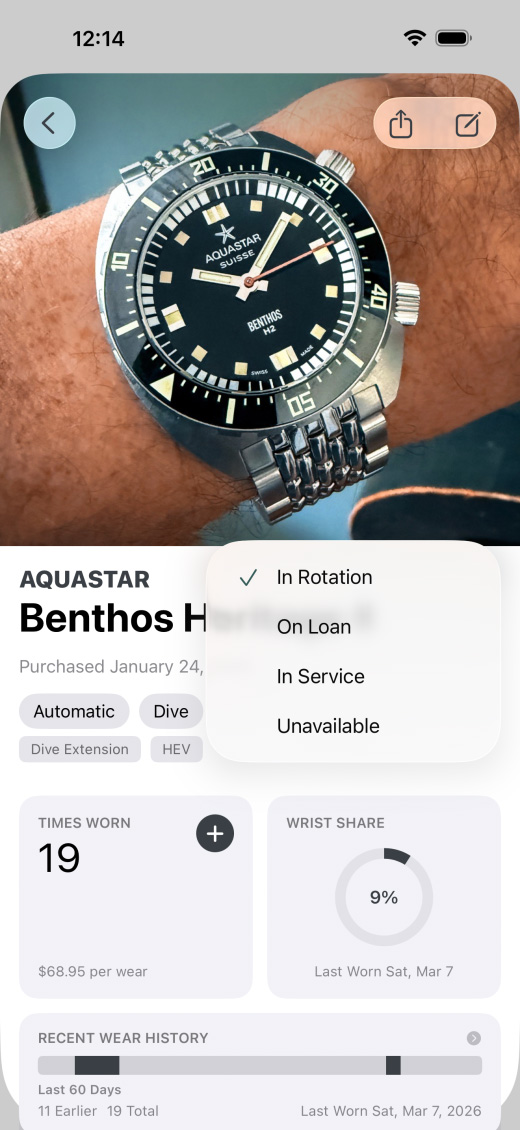
If you want to exclude a watch from the Carousel spin, set its Status to something other than In Rotation. There are Status options for On Loan, In Service, or simply Unavailable (i.e. Safe Queening ATM).
“When a man becomes preeminent, he is expected to have… enthusiasms.”
I hope you’ll find, as I have, that Prolost Watches is more than just a tool. It’s a way to hold your entire collection in your hand. To understand it, manage it, share it.
But most importantly, to enjoy it.
Frequently Asked Questions
What’s Prolost?
Prolost is one person: Stu Maschwitz. That’s me! I mostly make software for visual artists. I have a long history of sharing the tools that I create for myself with the film, visual effects, and photo communities.
I already have a system for tracking my watches, but I’m curious.
It’s easy to import data from other systems into Prolost Watches.
- Export an XLSX or CSV file and sync or copy it to your iPhone.
- Settings → Data & Backups → Import From Spreadsheet
- You’ll be walked through the process of mapping your data into the fields that Prolost Watches uses.
Everyone’s data is different, but the app does its best to make sense of whatever you throw at it. For best results, tweak your column names to match the fields in Add Watch.
If Prolost Watches guesses wrong, you can manually choose which fields to map to.
Tips for a successful import:
- Familiarize yourself with adding a watch manually to Prolost Watches before performing an import. Make note of what kinds of things are found in Type (Dive, Pilot, Dress, etc.) vs. Features (Moonphase, Jumping Hour, HEV, etc.).
- Make time for the process, and go slow. Importing is a multi-step operation, and care will be rewarded.
- You can, and probably should, map multiple input fields to Type and Features.
- Tags are a great catch-all for data that matters to you — everything from “Could Sell” to winder settings to what weather suits the watch.
- When in doubt, map text fields to Notes. Notes can also accept multiple input mappings, and then you can sort things out from there.
If you’d like to streamline the import process, you can map your data to these templates that Prolost Watches imports natively:
- Date format: YYYY-MM-DD works best (e.g. 2023-06-15)
- Multi-value fields (Type, Features, Dial, Bezel, Crystal, Case Material, Finish, Features, Tags): use comma-separated values within the cell (wrap in quotes for CSV)
- Numeric fields (dimensions, prices): plain numbers, no currency symbols or units
- Earlier Wears: this is your total count of pre-existing wears
- Empty/unknown fields: leave blank — the importer skips empty cells gracefully
Stuck? Let me know.
Can I back up my data?
Prolost Watches stores all data locally on your iPhone. It is not synced to iCloud. Prolost Watches data is backed up with your regular iPhone backups, so if you lose your phone, you can recover your data as a part of a full restore from your most recent device backup.
But as the saying goes, one is none, two is one — so Prolost Watches has its own backup system as well.
In Settings → Data & Backups, there’s an option to save a backup. The Activity complication will remind you to do this periodically.
You can also choose to enable Automatic Backups. Just pick a folder and let Prolost Watches back itself up automatically every five days.
Save your backup to iCloud Drive, or some other account that syncs with your computer. If you then back up your computer, you’ll have redundant backups, locally and off-site.
Do I have a choice of search engines used by the app?
Yes, in Settings → Search, you can choose among popular search engines.
Why iPhone only?
This is the downside of Prolost Watches being an work of craftsmanship, not business strategy. I want Prolost Watches to be a premium, native app, and (for now) I only know how to do that for iPhone.
How do I log multiple watches per day?
The easiest way to log a second watch in a day is from Recently Worn. You can also log a second watch from the Wear Calendar. Or just open the Details view for any watch, and log it with the plus button.
I forgot to log a watch. Can I retroactively log it?
Two ways:
- From Watch Details, tap Wears or Recent Wear History to open the list of logs for that watch. Tap the plus button, and choose any past date and time.
- From the Wear Calendar, select any day in the past and choose Log a Watch (or Log Another Watch).
How can I delete a mistaken wear log?
If you log the wrong watch by mistake, you can delete the log in Watch Details. Tap on Recent Wear History to see a list of all wear logs for that watch. Tap to edit, and find Delete at the bottom.
How do I get my Events to to show up on the Map?
When you add a GPS-enabled photo to an event, the Show on Map switch will become available.
If your photo doesn’t have location information, you can fix that in the Apple Photos app before adding it to Prolost Watches. Just swipe up on the photo and tap Add Location.
I accidentally created a Tag I no longer need. Can I remove it?
If you accidentally add a Case Material, Finish, Type, Feature or Tag that you want to remove, or if you otherwise want to manage these lists of metadata, head to Settings → All Watches → Watch Metadata. You can add, edit, and swipe-to-delete entries in the lists, or reset the lists to their defaults.
Deleting these metadata items removes them from all watches permanently.
How do I track watch servicing?
In Watch Details, you’ll see a section called Expenses & Service. Here you can add any kind of additional expense associated with the watch, such as a bracelet fitting, strap purchase, or a repair.
When you add an Expense, you have the option to mark it as Service. The date of the most recent Service becomes the Last Serviced Date, which you can will see summarized back in Watch Details → Expenses & Service.
Optionally, you can enter the manufacturer’s recommended Service Interval when adding/editing a watch. This is used with the Last Serviced date to show when a watch is due (or overdue) for service.
In All Watches, you can sort by Last Service or Service Due, to help plan which watches will need servicing next.
How do I mark a watch as Sold? Or unsold?
If you add either a Date Sold or a Sale Price, the watch appears as Sold. Remove both to restore the watch to your collection.
I have a JDM Seiko with a Kanji date wheel, can you help me set it?
Me too, and yes. I’ll leave it to you to figure out how. Happy .
Why does Prolost Watches ask me for location permission?
Prolost Watches can optionally save device location with wear logs. You can turn this on and off in Settings. Location information is always private and never shared.
How do wear logs work when I travel across time zones?
Prolost Watches believes in two things:
- A watch app should be pedantic about time.
- When you log a wear on a Wednesday, that should count as a wear logged on Wednesday, even after you travel to a wildly different time zone.
So when you log a wear, Prolost Watches saves the actual time of the log, as well as your current time zone information (which works even if you don’t enable location access).
The log Date & Time Actual is displayed and edited in the current device time zone. When you change time zones, this representation will change. The Logging Time Zone is the UTC offset at the time and location of logging. This is used to create the static Local Log Date & Time, which is used for Streaks and Calendar placement.
So you get the best of both worlds: Globally accurate log times and a record that matches what you’d write in a pen-and-paper journal.
I re-set my watch and took a new Timekeeping record. How does that work?
You’ll remember that a watch’s Rate is calculated from two subsequent Offset measurements. But of course this assumes the watch has not been re-set in between. To inform the charts that the watch has been freshly set, edit the new Timekeeping record and turn Reset on. No Rate will be calculated, and a gap will appear in the charts.
What if I want to leave the app and use something else?
Your data is yours, and Prolost Watches will help you migrate it wherever you like. In Settings → Data & Backups, you can export a complete backup, as well as data for a single watch or multiple watches.
The backups and exports that Prolost Watches saves are text files in a common format called JSON. You can feed them to any AI tool and ask it to create a spreadsheet or other data conversion.
If I don’t like the app, can I get a refund?
Almost assuredly. But because you buy Prolost Watches from Apple, not from me, I never see your information (yay, privacy!), and have no control over refunds (boo, customer service). You request a refund from Apple directly, and it’s up to them to grant it, which they usually do.
I have bug reports. And feature suggestions. And cocktail recipes.
I’d love to hear about them.